How To Create Ad Campaigns & Track Performance In ChatGPT
After 12 days of holding our breath, we finally got confirmation from OpenAI that our Ads Manager account is ready for business. If you missed the news, OpenAI made advertising widely available within ChatGPT as of May 5, 2026, but rollout has been a little slow. Businesses interested in advertising must submit information to OpenAI via Ads Manager and wait for verification, which is what we spent nearly two weeks waiting for. And now, the time has come. We’re putting ChatGPT’s ads to the test!
Paid campaigns aren’t foreign to search engines like Google and social media platforms like Meta and LinkedIn, but ChatGPT is one of the first generative search experiences to introduce advertising capabilities. Follow along with us as we create a campaign and explore what the new Ads Manager has to offer.
Our Initial Impressions Getting Started With Ads In ChatGPT
We can’t yet be sure how well ads will perform in ChatGPT in these early weeks, but our first impression of OpenAI’s Ads Manager platform is optimistic. Honestly, the experience feels reminiscent of expanded text ads in Google, before responsive search ads took over. Creative opportunities are limited, and we expect there to be some bumps in the road as the platform adjusts its audience targeting parameters. Still, the cost per click (CPC) is surprisingly low, making advertising more accessible and budget-friendly than we anticipated. Without further ado, let’s dive into the platform.
Your Step-By-Step Guide To Campaign Creation In OpenAI’s Ads Manager

Before you can create a campaign, make sure you complete OpenAI’s verification process to set up your advertising account. You’ll receive an email once your account is approved, and then you’re ready to get started. We found campaign creation and ad setup to be an intuitive process, especially if you’re familiar with advertising in Meta’s Ads Manager or in Google search campaigns. Nothing felt foreign, aside from the novelty of advertising in conversational AI-based search experiences. Here’s what you can expect as you get started:
Step 1: Create Campaign
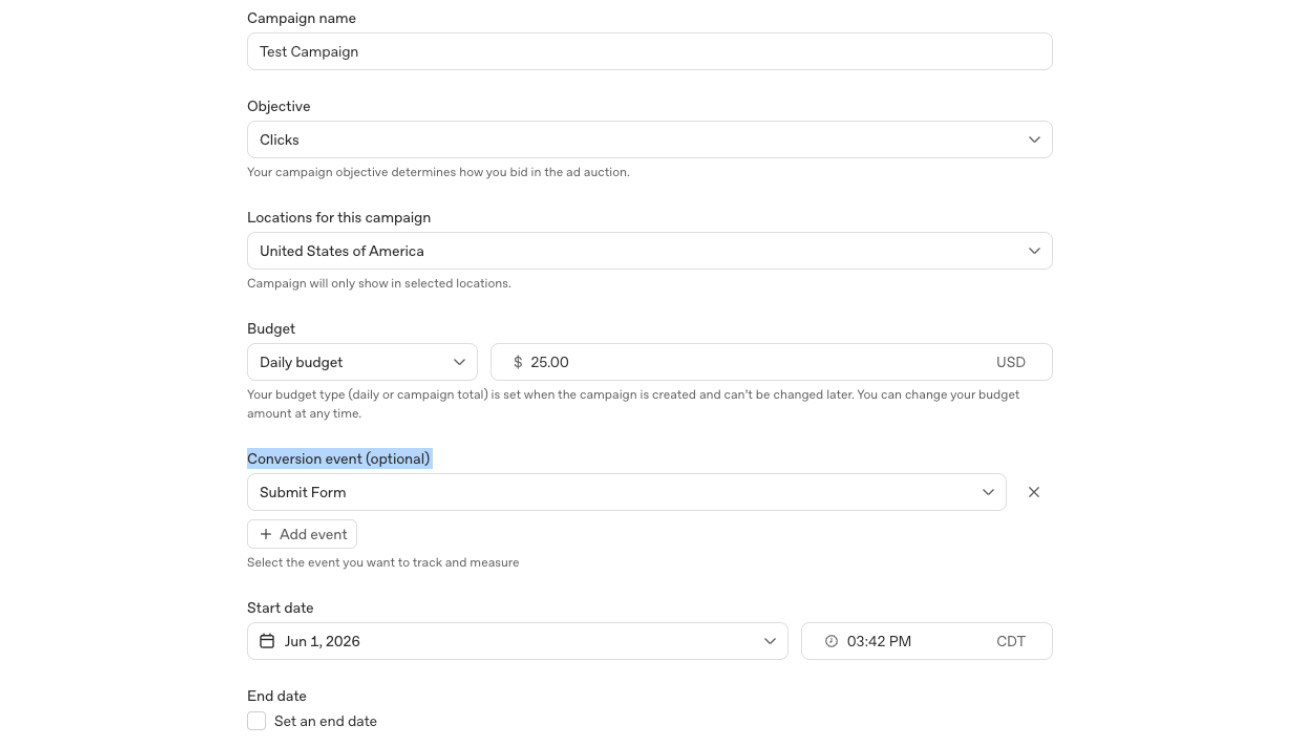
Log in to your OpenAI Ads Manager account and click “Create” in the top right corner. You’ll be prompted to complete initial details about your campaign and advertising goals:
Campaign name - This is how your campaign will show up in your Ads Manager account as you monitor future performance. If you plan to run multiple campaigns, make sure you give it a name you can easily distinguish from future topics.
Objective - Choose from three objectives to help drive your campaign. This is one of the big differences you’ll notice if you’re familiar with Google Ads. Instead of creating different campaign types (PMAX, responsive search ads, display ads, etc.), OpenAI will optimize your campaign to meet your desired objective:
-
Reach - Choose this for general awareness campaigns.
-
Clicks - Choose this to drive engagement. This is what we recommend initially for the best results.
-
Conversions - This option is not available to select yet, likely because your campaign will need to generate conversions first.
Locations - Currently, advertising is available in the U.S., Australia, Canada, the UK, and New Zealand. Within these countries, you can search for specific regions if you’re targeting a more localized audience (i.e. territories, states, or designated market areas). Those familiar with Google Ads may know there’s an option to target an audience based on “Presence” or “Presence and Interest.” Presence targets people who are in the target location, while Presence and Interest targets those individuals as well as individuals interested in the location. OpenAI doesn’t distinguish between the two, so we’re operating under the assumption that locations represent a broader audience.
Budget - Choose from two options:
-
Campaign budget - Select if you want to allocate a specific dollar amount to cap your campaign at. Once your campaign reaches this amount, it will end.
-
Daily budget - Select if you want predictable ad spend for ongoing campaigns and flexibility for future optimizations. Note Ads Manager requires a minimum of $25 per day in ad spend if you choose this option. That’s a $760 budget per month. To calculate monthly budget based on your desired daily amount, multiply the daily amount by 30.4.
Conversion events - Optionally, select conversion events you want to track throughout the campaign. Conversion events can be created separately before building out your campaign, so you probably won’t have anything to add here as you’re starting out. We’ll share more on building conversion events later!
Start & end date - You must choose a start date, but you can leave the end date open if you plan to run the campaign indefinitely.
Step 2: Set Up Ad Groups
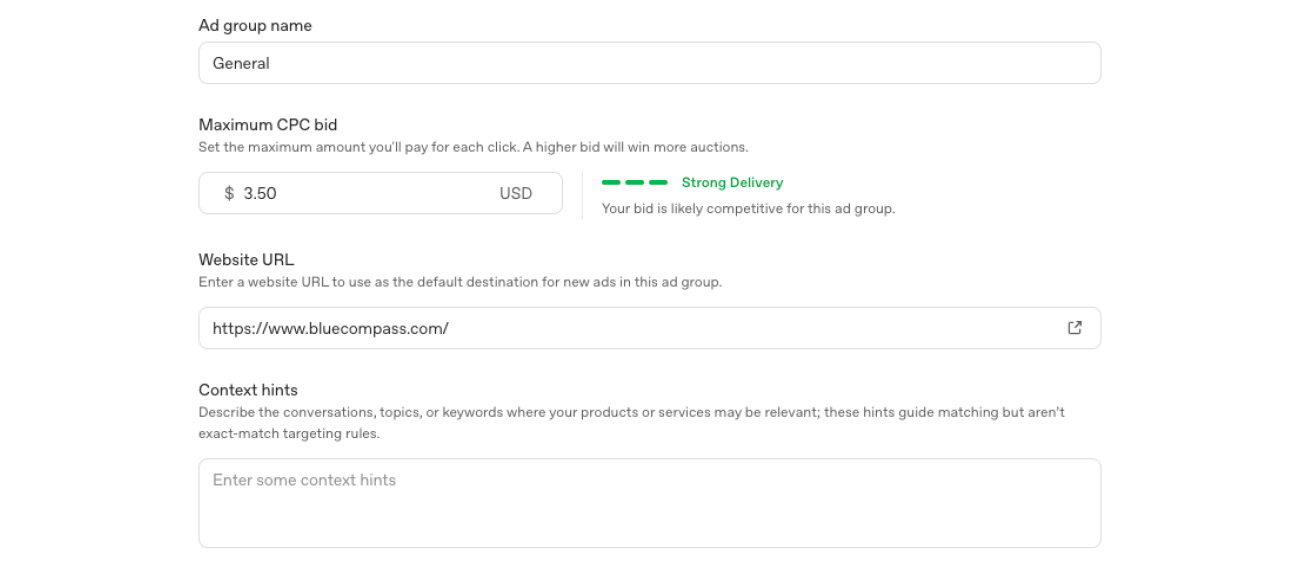
Next, you’re ready to start setting up your ads. You must complete these details about your ad group:
Ad group name - If you only plan on running one ad group within a campaign, you can name this “General,” but if you will be running multiple ad groups, make sure you choose a name that can help you differentiate between campaigns in the future.
Max CPC bid - We did some experimenting and found that OpenAI anticipates strong delivery for bids set at $3 or higher. This is significantly cheaper than CPC for Google Ads. We’re still in the early days of ads in AI and don’t yet know how these ads will perform, but the relatively low CPC could impact Google’s pricing in the future as they try to remain competitive with advertising on other platforms. Time will tell!
Website URL - Include the link the ad will direct to. When you create individual ads within the group, they will default to this link, but you can update to a different URL at the ad level if desired.
Context hints - Unlike Google Ads where you can add specific targeting criteria and search terms, ads in ChatGPT are based on context. You can include a description detailing the topics, keywords, and conversations that you want your ad to show up for, and OpenAI will match your ad to the content it deems relevant. We expect this to be largely experimental as the platform gets smarter, but targeting is definitely more limited than we’d expect from a traditional search ad.
Step 3: Build Ads
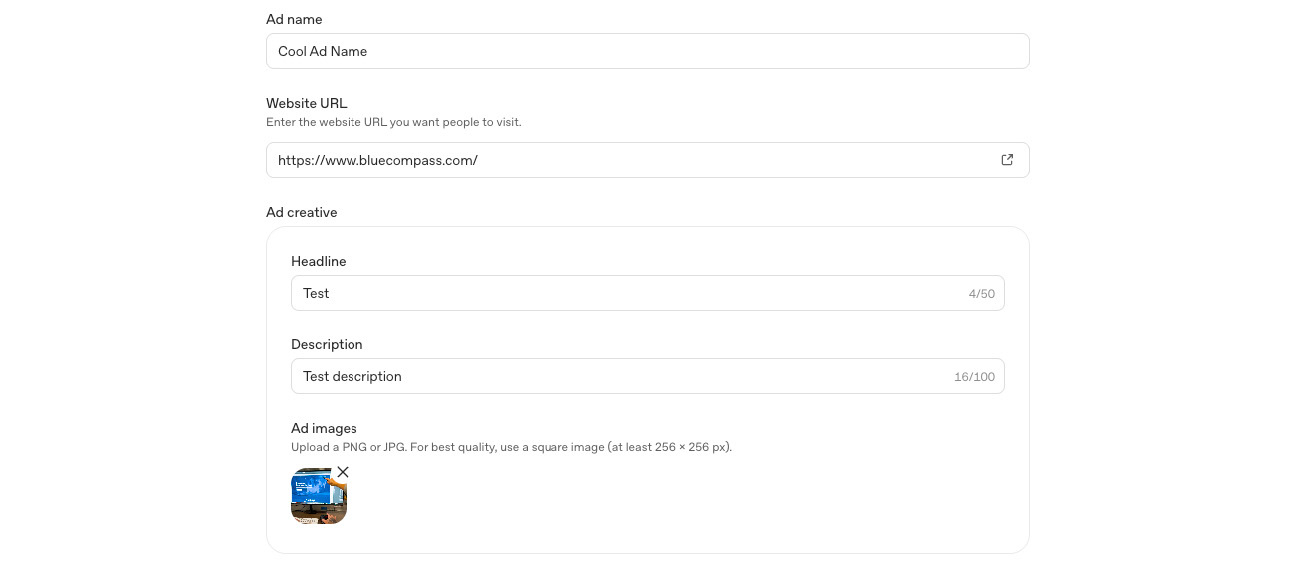
Once you’ve created your ad group, it’s time to start building out your ads. This is where you supply the creative that will drive your ads. Keep in mind you won’t have the same variability you have with responsive search ads in Google. Whatever you use as the headline, description, and image in OpenAI Ads Manager is what will display as an ad in ChatGPT. Fill out the following details and preview your ad in real-time:
Ad name - We have to note how convenient this is. If you’ve been in the Google Ads platform at all, you know ads don’t have individual names, making it difficult to track performance and optimize accordingly. ChatGPT is giving marketers the ability to name each ad, and for that, we’re thankful.
Website URL - This will default to the URL you listed in the ad group, but you can update it as desired.
Headline - Ensure the most important portion of your headline is included in the first 25 characters to avoid being cut off, with up to 50 characters total allowed.
Description - Similarly, keep the most important details of your ad copy in the first 48 characters to get in front of the cut-off point, with up to 100 characters total allowed.
Image - Square images are preferred and must be at least 256 x 256 pixels. If you upload an image that isn’t a square, Ads Manager will automatically crop the image to fit, and you won’t be able to adjust the crop.
Repeat this process for each ad you want to include in the ad group.
Step 4: Review & Confirm
Finally, you’ll get one last chance to confirm your campaign details are correct before it goes live. When you’re ready, click “Create campaign,” and it will prompt you to resolve any errors or fill out incomplete details if necessary. Otherwise, you’ll be directed back to the homescreen of your Ads Manager account, where the campaign will be listed as pending. Within minutes, our first campaign started serving, and now we’re letting our ads do their thing while we gather performance data we can use to further optimize campaigns in the future.
How To Track Ad Performance In ChatGPT
Within Ads Manager, you can navigate to “Conversions” under “Tools” to create tracking pixels and conversion events aligned with your campaign goals. After selecting “Create data source,” ChatGPT will generate a pixel you can place in Google Tag Manager (GTM) or directly on your website to track actions like form submissions or appointments scheduled. Similar to the Meta Pixel or LinkedIn Insight Tag, ChatGPT’s Pixel helps connect ad performance to on-site activity.
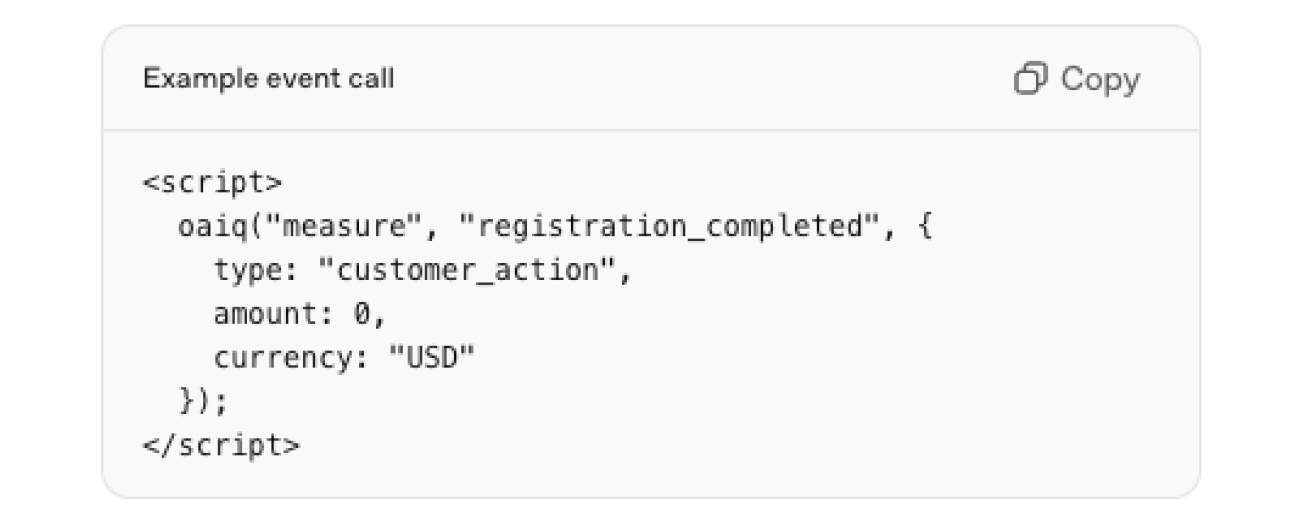
If you’re implementing the pixel through GTM, some manual JavaScript edits may be required. If you’re not in the weeds of website code and analytics everyday, don’t let that discourage you from advertising on ChatGPT. Let Blue Compass know how we can help you get started, and we’ll ensure your ads are ready to fire on all cylinders.
Once your data source is connected, you can create custom conversion events and monitor performance directly within Ads Manager. You can also filter and export campaign data to better understand results and conversion activity over time. Stay tuned for more insight into ChatGPT ads once we’ve given our ads time to do their thing!
Contact Blue Compass To Get Started Advertising In ChatGPT
If you’re curious about advertising in ChatGPT, now is the time to start. Since the verification process can take a couple weeks and you’ll need at least a month of campaign data to determine what’s working, the sooner you dive in, the better. At Blue Compass, we’re proud to be an early adopter and are here to help if you want to explore OpenAI advertising for your business. Contact us to learn more or to get started today!