Ads Are On ChatGPT: Here’s How To Get Started
As of May 5, 2026, businesses and individuals are able to create and publish ad campaigns in ChatGPT. Becoming the first major generative search platform to gain traction with users starting in late 2022, it was only a matter of time before parent brand OpenAI enabled advertising within the platform.
In a recent survey of how Iowans use AI, our team at Blue Compass discovered 81% of the adults surveyed use at least one AI tool. Of those who use AI, 51% have used ChatGPT, and 35% list ChatGPT as their preferred platform. More than half of these users trust the information provided by AI as much as or even more than the information from search engines. This data along with emerging advertising capabilities points to the next evolution of the shifting search landscape, requiring marketers to adapt their strategies alongside user behavior to reach users where they are.
What Ads Mean For OpenAI
OpenAI environments like ChatGPT are rich in context and cues as users interact conversationally with the platform to find information and make decisions in real time. Currently, OpenAI has enabled advertisements on users of ChatGPT Free and ChatGPT Go only, so Plus and Pro users will not see ads in-platform. Businesses have the opportunity to create ad content including their brand name, logo, a campaign headline, supporting copy and image assets, and a landing page. These ads are clearly labeled and distinct from ChatGPT’s responses, aligned with what users have come to expect from digital advertisements.
However, for businesses trying to reach a high-intent audience, the context provided in AI prompts ensures ads appear for highly relevant queries for individuals at various stages of their decision-making process. Eyes will be on ChatGPT as other AI platforms introduce their own advertising capabilities and AI-native advertising continues to get smarter for even more targeted experiences.
Where To Find OpenAI’s Ads Manager
To create ads for ChatGPT, marketers must first sign up and create an account on OpenAI’s Ads Manager. The site will walk you through an enrollment and verification process to confirm you’re a valid business entity before granting access to create and manage campaigns. Once you're approved to start advertising, Ads Manager will serve as the hub where you can create or upload campaigns, track performance, and manage account settings like billing details. OpenAI lists their Ads Manager as a beta experience that we can expect to continue expanding over time.
How To Set Up Your Ads Manager Account
Setting up your Ads Manager account in OpenAI is a quick process that should take no more than 5-10 minutes. Come prepared with your business’ employer identification number to streamline the process. If you already have an OpenAI account linked to your business email, you will be prompted to sign in and create your Ads Manager profile from there. Otherwise, you can create an account directly from the onboarding page. Here’s what to expect as you get onboarded:
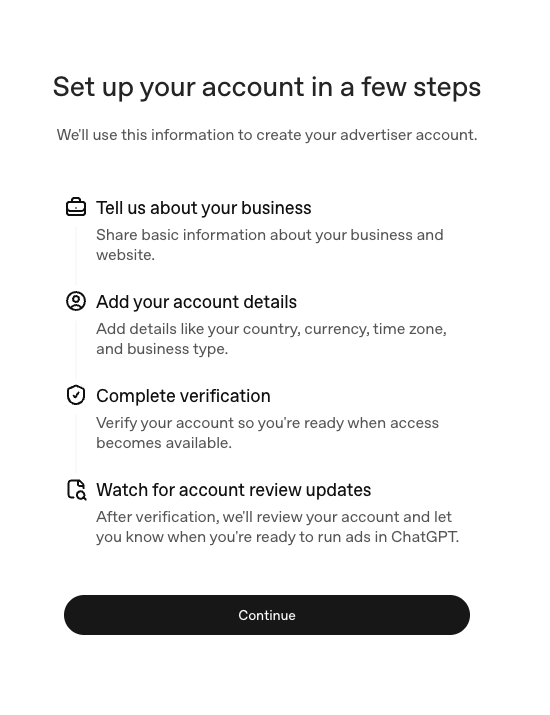
Step 1: Tell OpenAI About Your Business
First, you will be prompted to share business details including:
- Legal business name
- Business URL
- Favicon (This is your business’ logo that should be uploaded at a minimum of 128x128 pixels using a square aspect ratio for best results.)
- Industry (You will need to select the industry that best applies based on a drop-down list.)
Step 2: Confirm Account Details
Next, you will need to confirm your account details related to billing and verification.
- Country
- Currency (This should auto-fill based on your country selection.)
- Time zone
- Advertiser type - Individual or Business (Unless you are a small, independently operated business, you should select Business.)
- Is your business an agency - Yes or No (At this time, agencies cannot create an account on behalf of another business. Businesses must have their own Ads Manager account.)
Step 3: Create Advertiser Account
Once your initial business information is provided, you’re ready to create your advertiser account. Selecting “Create Advertiser Account” will move you into the verification portion of the process.
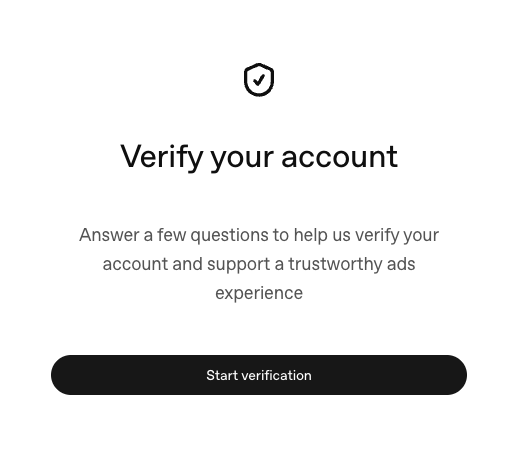
Step 4: Verify Your Account
To verify your account, you will once again be prompted to confirm business details based on the information you’ve provided. At this stage, you must also provide your employer identification number and business address (including both your physical and legal business address if different).
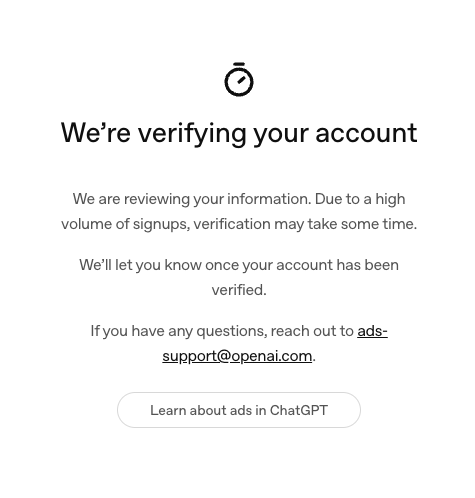
Step 5: Submit For Review
Once you’ve shared all of the necessary information, you’re ready to submit your profile for review. Due to a high volume of signups, OpenAI reports verification may take a few days. You will receive an email from the OpenAI team confirming your account once it’s verified. We submitted our profile for review on May 7 and didn't get verified until May 19, so we can confirm this may take some time.
What’s Next For Advertising In ChatGPT?
Pilot brand users like BestBuy and Lowe’s report promising potential for ad performance and cite the ability to gain meaningful audience insights from within the Ads Manager platform. Our team at Blue Compass is excited to test our own campaigns and take advantage of the capabilities Ads Manager has to offer. Check out our blog documenting the step-by-step process to create a campaign along with our initial impressions to help you get started. Hint: the platform is nothing groundbreaking if you're familiar with other advertising platforms (expanded text ads are so back!), but we're excited to keep exploring. We will continue to share more information about campaign setup, audience targeting, and ongoing optimization opportunities as we gather initial results.
Contact Blue Compass To Get Started With OpenAI Advertising
Blue Compass is on the frontlines as the future of digital marketing and AI unfolds in real time. If you’re interested in learning more about generative engine optimization best practices or OpenAI advertising opportunities, contact us for strategic insight to stay ahead in this exciting era of digital marketing.